
Levels of residential account access
As the primary account holder, you can give another person three levels of account access:
 Note: A primary account holder can remove a person's access at any time by phone or online.
How do I give account access to one or more people?
To give someone access to your account:
- Sign in to the My Account dashboard.
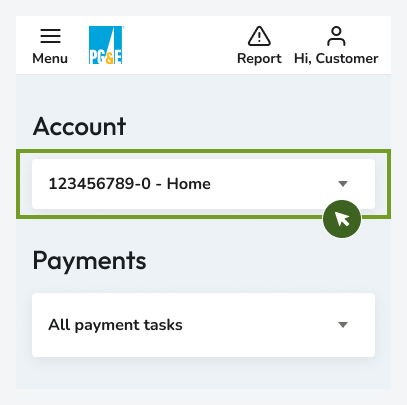
- Select the account.
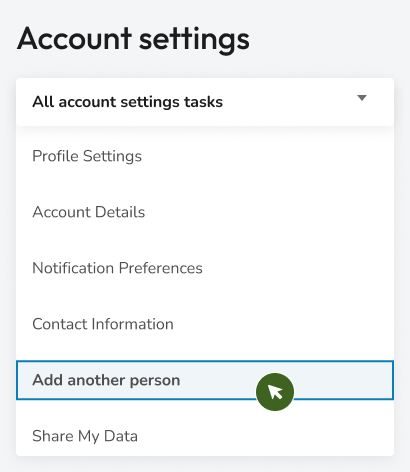
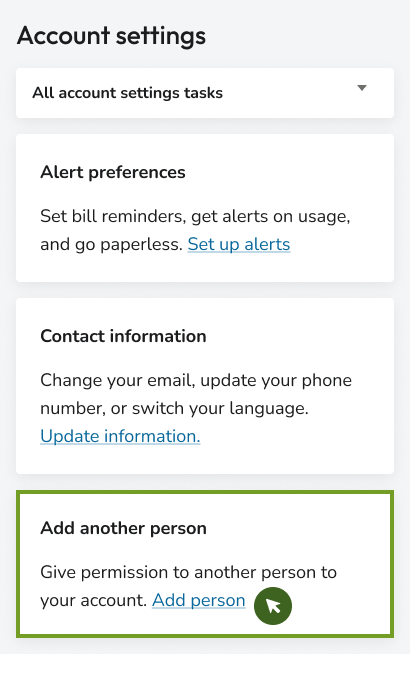
- Select "add a person" on the dashboard.
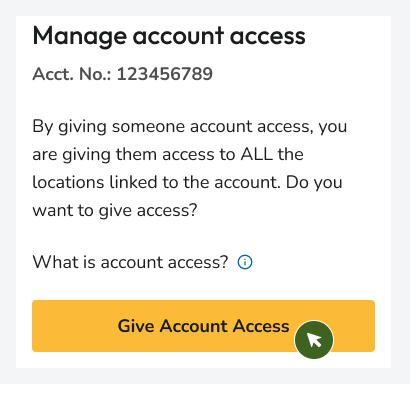
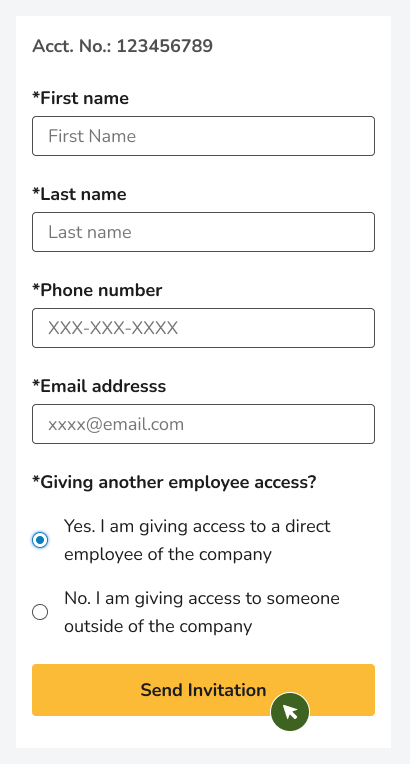
- Enter the user's name, email and phone number.
- Send the invitation.
How do I request access from someone?
- Contact the primary account holder.
- Give them your phone number and email address.
- If they agree to give you access, they can select "add a person" on their dashboard.
- Accept the invitation.
- If necessary, create a sign-in.
- Access the account.
Note: No invitation in your email inbox? Check the spam or junk folder.
Levels of business access
Note: An authorized user can remove an authorized direct employee or third party's access at any time by phone or online.
How do I give access to someone?
To give someone access to your account:
- Sign in to the My Account dashboard.
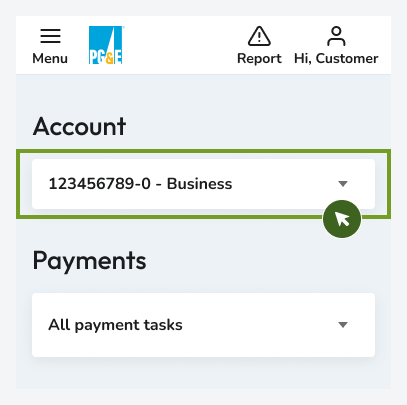
- Select the account.
- Select "add a person" on the dashboard.
- Enter the user's name, email and phone number.
- Send the invitation.
How do I request access from someone?
- Contact the authorized user.
- Give them your phone number and email address.
- If they agree to give you access, they can select "add a person" on their dashboard.
- Accept the invitation.
- If necessary, create a sign-in.
- Access the account.
Note: No invitation in your email inbox? Check the spam or junk folder.
The owner of a residential account is called a primary account holder. There can be only one primary account holder.
The primary account holder can give another person one of three levels of account access:
- Full access
- High access
- Read-only access
Once this person accepts the primary account holder's invitation, they can create their own username and password to access or manage the account.
- For a residence, the primary account holder should be the main account owner.
- For a business, it should be a direct employee of the business.
Note: Primary account holders and authorized users can give access to others at any time.
No. Residential accounts can have only one primary account holder. However, as the primary account holder, you can invite authorized users to help manage your account.
Yes, but they must be a direct, verified employee of the business.
Third parties must ask an authorized user for access to manage the business account.
- Third parties can't be given full access to a business account. They can only be given high or read-only access.
- An authorized user can remove a third party's access to manage the business account online or by phone at any time.
Please don't call customer service.
- Contact the authorized user.
- Give them your phone number and email address.
- If they agree to give you access, they can select "add a person" on their dashboard.
- Accept the invitation.
- If necessary, create a sign-in.
- Access the account.
Please don't call the Business Center.
- Contact the authorized user.
- Give them your phone number and email address.
- If they agree to give you access, they can select "add a person" on their dashboard.
- If necessary, create a sign-in.
- Access the account.
- To make sure your employees have access to your business account, you must assign a trusted employee to be an authorized user.
- Once your business account has an authorized user, this person can invite others to access it.
- To assign an authorized user, call 1-877-660-6789.
You can give a new employee access to your business account in one of two ways:
- The authorized user can invite new employees online with their name, email and phone number. The new employee will receive an invitation by email.
- The new employee can call 1-877-660-6789. After a PG&E representative adds the new employee to the business account, the new employee will be able to register online.
No. If you send PG&E a Letter Of Agreement (LOA), we’ll require you to submit a Property Management Authorization Agreement (Form 79-1099) (PDF).
- Contact the authorized user.
- Give them your phone number and email address.
- If they agree to give you access, they can select "add a person" on their dashboard.
- Accept the invitation.
- If necessary, create a sign-in.
- Access the account.
- Sign in to the My Account dashboard.
- Select the account.
- Select "add a person" on the dashboard.
- Enter the user's name, email and phone number.
- Send the invitation.
- Contact the primary account holder or authorized user.
- Give them your phone number and email address.
- If they agree to give you access, they can select "add a person" on their dashboard.
- Accept the invitation.
- If necessary, create a sign-in.
- Access the account.
Note: If you fail to receive an invitation by email, check your inbox's spam or junk folder.
You'll receive an email confirmation every time the person you invited has accepted your invitation to be an authorized user.
Check the status of each invitation by selecting the account from the dashboard account selector and selecting the "Add a person" link.
In June 2025, we upgraded your PG&E account with new features. For most customers, the upgrade process is easy.
It could take a bit longer if:
- You were sharing a username or email address with another person.
- You had multiple usernames for the same account.
- You managed more than one account.
- You weren’t the primary account holder.
Learn more at PG&E's new account guide
You can view all your accounts either by linking them directly or by having the account holder send you an invitation.
Link missing accounts
Sign in and, next to the "Account" header, select "Add an Account" to link your missing accounts to your new pge.com account.
- You can link multiple accounts to that login. This lets you manage all your properties or both business and residential accounts from one login.
Request access
Someone else may have registered the account first. Ask them to send you an invitation
- Once you accept the invitation, the account will be linked to your profile to manage.
Managing your account access takes the hassle out of sharing a pge.com account with friends, family and business associates. As the owner, you can invite others to help manage your account. No more shared passwords. The new user will have their own sign-in and one of three levels of access to your account.
If you already have a pge.com username and password, sign in as usual. To register as a new user, you'll need:
- Your account number
- Your phone number
- Your ZIP code
Register for an online account now
Your account number can be found in two ways:
- Online lookup
- PG&E energy statement
Option 1: Online lookup
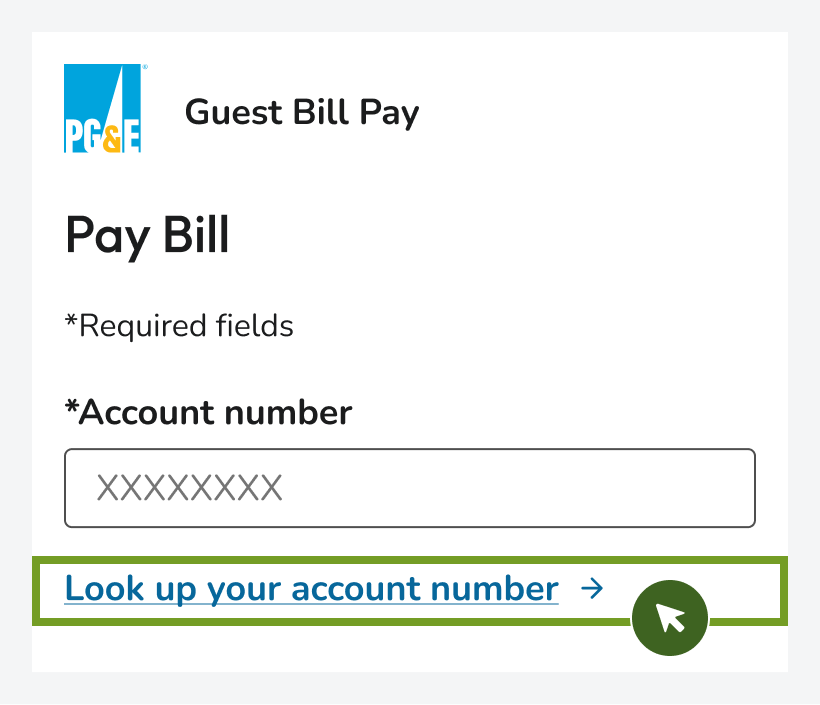
- Use guest bill pay.
- Select the "Look up your account number" link.
Option 2: PG&E energy statement
- Your account number can be found in the top-right corner of your energy statement.

More ways to manage your account
Review and pay your bill
Find a variety of easy ways to review and pay your bill.
Sign in without an account using guest bill pay
Don't have an online account set up? Don't want to sign in to pay your bill? No problem.
Self-serve options
Take care of tasks quickly and easily online. Update your account, pay your bill, update alert settings and more.